



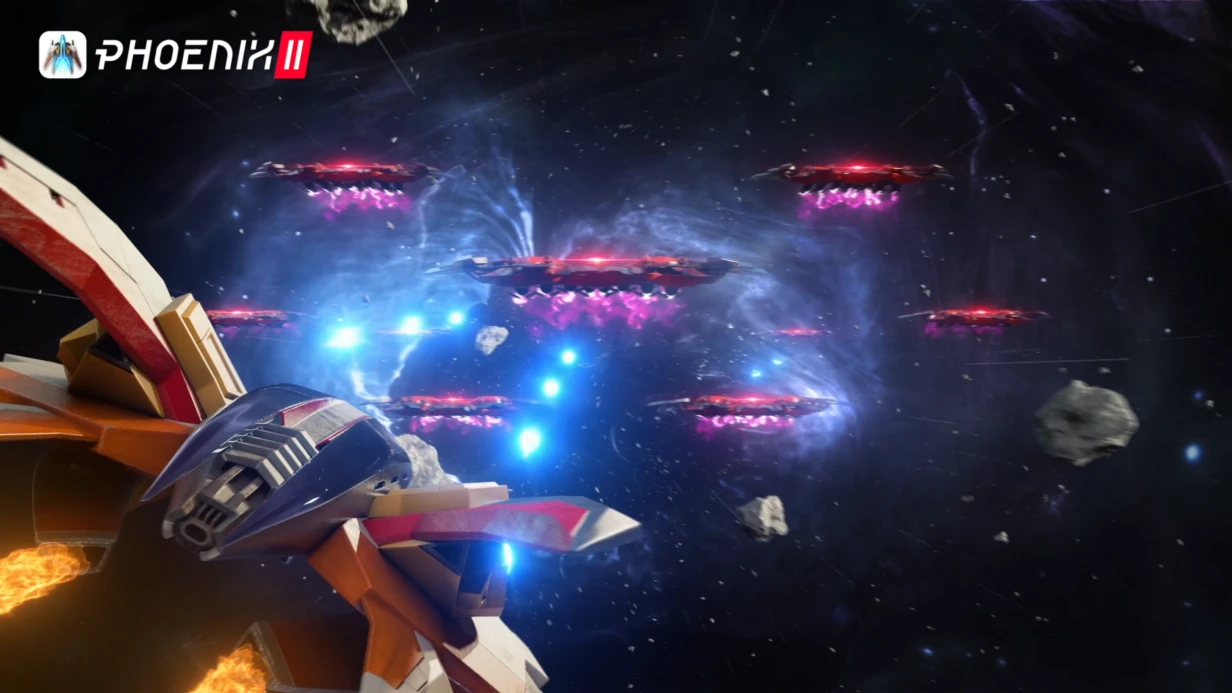
Developing UX/UI for games that withstand strict performance and usability requirements is a separate engineering discipline. Take a shooter's HUD as an example: information must be readable with peripheral vision, without distracting from the firefight.
An RPG inventory is opened for a few seconds, but is remembered for a long time. Different tasks — one solution: interfaces that work anywhere, from mobile devices to consoles.
Our approach reduces the number of draw calls by 20-30% compared to a typical implementation, saving up to 15% of frame render time.
Why is game UI a separate discipline?
Unlike web design, a game interface operates in real time. Every extra draw call can cause FPS drops. We account for this at the design stage: minimize the number of Canvases, use batching and proper font atlases.
10+ years of experience in gamedev allow us to anticipate bottlenecks. For example, a typical mistake is using a single Canvas for the entire UI, which leads to redrawing hundreds of elements when a timer updates. The solution is splitting the Canvas.
How do we ensure interface performance?
Canvas with Overlay on mobile
The classic problem: Unity redraws the entire Canvas when any child element changes. The solution is to split the Canvas into static and dynamic parts and add a separate Canvas component to frequently updated elements. This reduces the number of Canvas rebuilds by 3-4 times.
Scaling for different aspect ratios
Canvas Scaler in Scale With Screen Size mode with Reference Resolution 1920×1080 and Match = 0.5 is standard, but not a silver bullet. On iPad (4:3) or foldable devices, the UI falls apart. We deliberately set anchors in RectTransform for each element. For non-standard resolutions, we add additional rules via Layout Group.
TextMeshPro and Dynamic Font Atlas
If a game has multiple languages with Cyrillic, Greek, Arabic, one atlas will not be enough. When characters are added at runtime, Unity rebakes the atlas, causing a 2–5 ms freeze. For critical screens, we use static atlases with an explicitly defined character set. This completely eliminates atlas-related freezes.
Animation performance
UI animations often become a bottleneck. DOTween and LeanTween work with transforms directly, bypassing the Animator Controller, which reduces CPU load. Comparison: animating a button's scale via Animator takes ~1.2 ms, via DOTween — 0.4 ms.
With 20 simultaneously animated elements, the difference becomes critical. Order UI development with these optimizations taken into account.
How to measure UI performance?
We use Unity Profiler: look at CPU Usage → Canvas.BuildBatch and Canvas.SendWillRenderCanvases. The norm for mobile devices is no more than 2 ms per UI rendering. Target metrics table:
| Category | FPS budget | UI budget |
|---|---|---|
| Mobile (60fps) | 16.7 ms | 2-3 ms |
| Console (30fps) | 33.3 ms | 4-5 ms |
| PC (60fps) | 16.7 ms | 3-5 ms |
Exceeding the UI budget leads to stutter.
How we design game UI
HUD: information without distraction
A good HUD makes information accessible without requiring focus. We work on the principle of ambient information: the HP bar changes color as it decreases, pulses at a critical level.
For each element we define the update frequency: HP — every hit, minimap — 0.5 sec, timer — every second. Update with an accumulator instead of direct update every frame reduces the load on Canvas rebuild.
Menu screens and navigation
Navigation via NavigationGraph in Unity UI — for gamepad and keyboard support. We set explicit navigation for each button, we do not leave it on automatic. Transition animations — via DOTween or LeanTween, not via Animator in simple cases. For complex sequence animations we use Animator with AnimationEvent.
Inventory and drag-and-drop
Drag-and-drop is implemented via interfaces IBeginDragHandler, IDragHandler, IEndDragHandler. The main problem is behavior when going outside ScrollRect. We manage events via EventSystem.current and separate scrolling and dragging by threshold.
Virtualization of long lists — via Pooling + ScrollRect, we use ObjectPool (built-in since Unity 2021 LTS). For the console version we add gamepad support using EventSystem.
What is included in the work
- UX audit of existing UI or design from scratch
- Component library in Figma with state variants
- Build in Unity with animations and gameplay integration
- Adaptation for all target platforms (iOS, Android, PC, consoles)
- QA on devices: notch safe area, different densities, aspect ratios
- Implementation documentation and support recommendations
Timelines and cost
| Stage | Timeline |
|---|---|
| UX audit | 3–5 days |
| Design in Figma | 1–2 weeks |
| Implementation in Unity | 1–3 weeks |
| QA and adaptation | 3–5 days |
Cost is calculated individually after analyzing the scope and platform requirements. A simple HUD — from a week, a full UI kit — from a month. Contact us to get a consultation and preliminary estimate for your project. We guarantee a transparent process and fixed timelines.
Read more about the technical aspects in the official Unity Canvas documentation and TextMeshPro.