

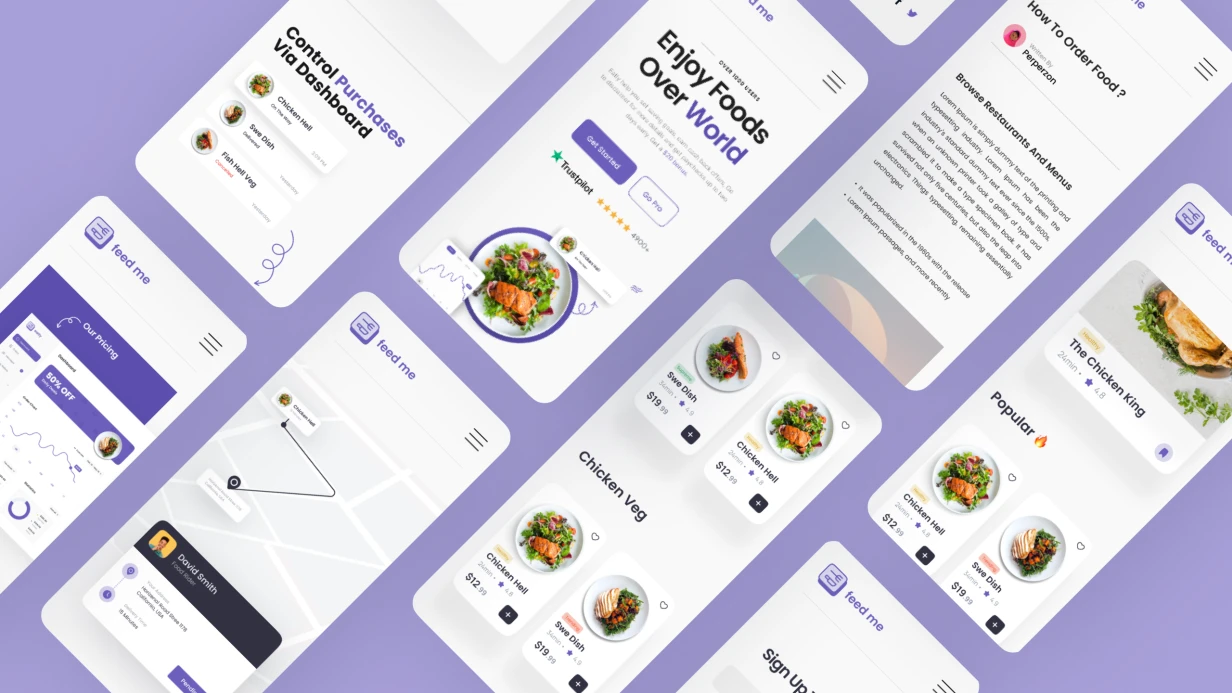
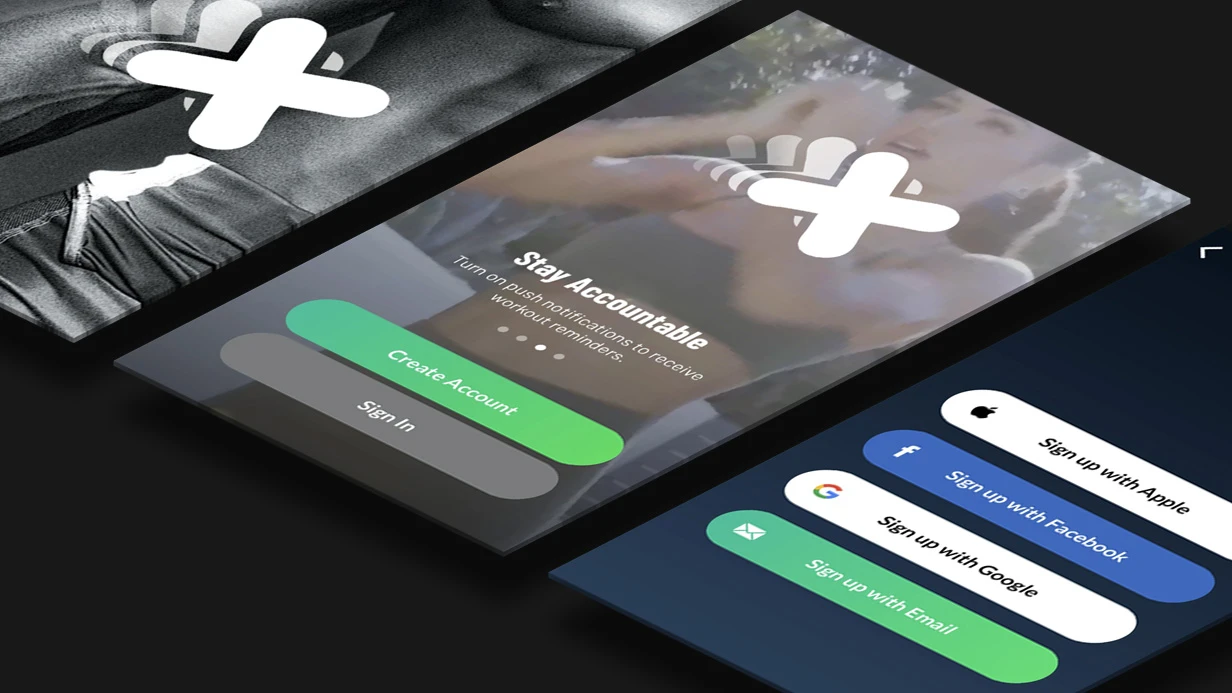
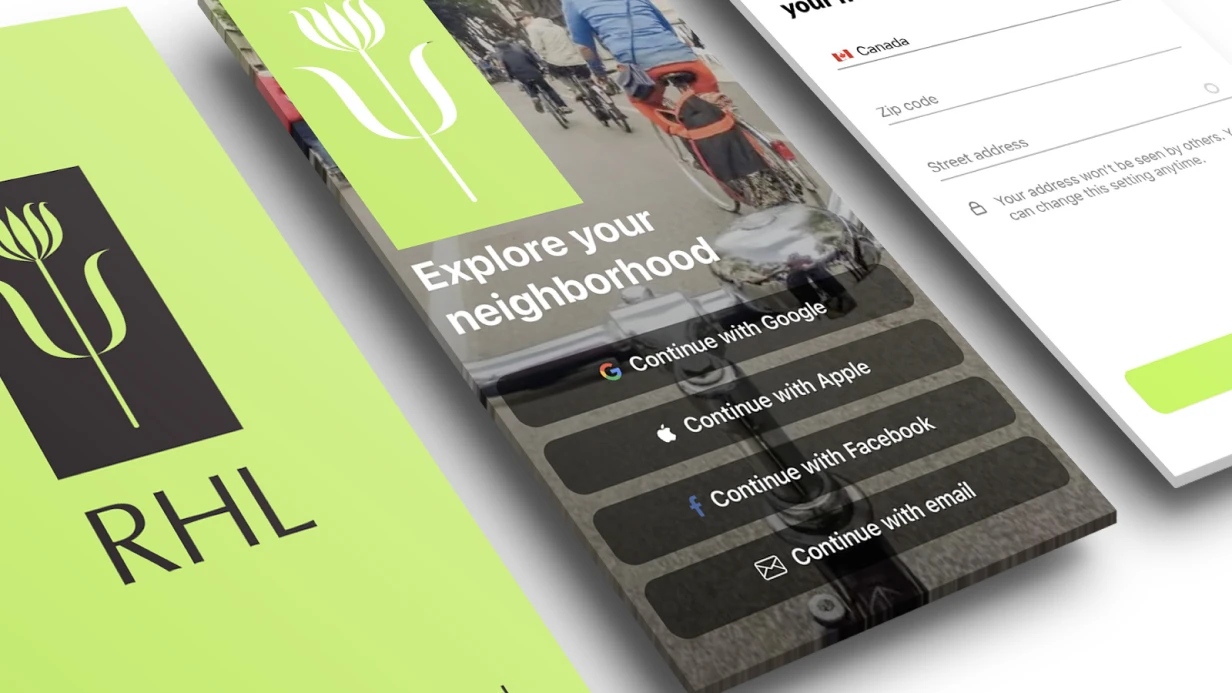
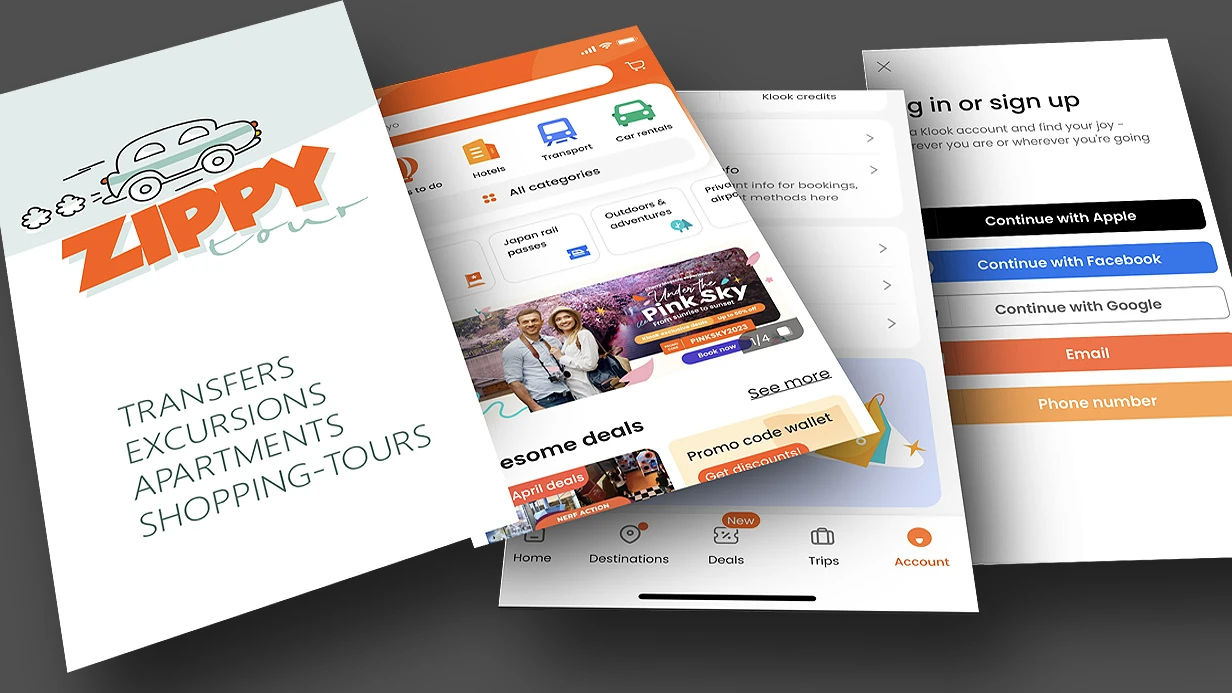
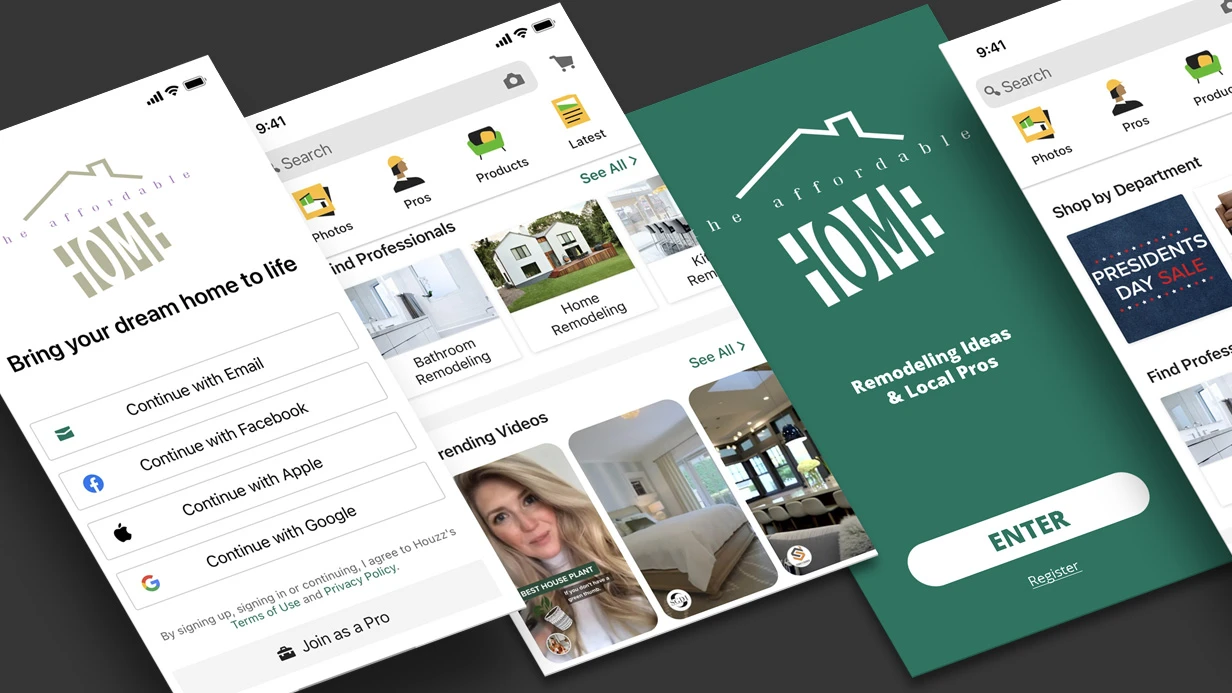
The login screen is the first thing a user encounters. Technical details decide everything: missing autofill, wrong keyboard type, or a login button hidden behind the keyboard — and up to 30% of new users leave without completing login. On iOS, a missing keyboardType = .emailAddress forces an extra switch to the symbol keyboard; on Android, inputType="textPassword" without autofillHints excludes password managers. We have specialized in mobile authentication for 5 years and implemented 40+ login screens for fintech, e-commerce, and SaaS. Our expertise is backed by Apple and Google Play Console certifications. According to our case studies, a properly implemented login screen reduces post-release rework by 30%.
Typical Errors in Login Screen Development
- Password field without
secureTextEntry(iOS) orinputType="textPassword"(Android) — password visible in plaintext. Direct security guideline violation. - Email field without
keyboardType = .emailAddress— user loses 2–3 seconds switching keyboard layout. - Missing Password AutoFill: on iOS require
textContentType = .passwordfor password andtextContentType = .usernamefor username; on Android —autofillHintswithAUTOFILL_HINT_USERNAMEandAUTOFILL_HINT_PASSWORD. Without this, users type manually, conversion drops 15–20%. - Login button covered by keyboard — a standard bug that can be fixed in an hour: add
KeyboardAvoidingViewin React Native,adjustResize+WindowInsetsin Android, orinputAccessoryViewin iOS UIKit.
How to Implement Autofill on iOS and Android?
| Platform | Login Field | Password Field | Keyboard | Autofill |
|---|---|---|---|---|
| iOS (UIKit) | UITextField with textContentType, autocorrectionType = .no, autocapitalizationType = .none |
UITextField with isSecureTextEntry = true, textContentType = .password |
.emailAddress |
.username / .password |
| iOS (SwiftUI) | TextField with .textContentType(.emailAddress), .keyboardType(.emailAddress), .submitLabel(.next) |
SecureField with .textContentType(.password), .submitLabel(.go) |
.emailAddress |
automatic |
| Android (Compose) | OutlinedTextField with keyboardOptions = KeyboardOptions(keyboardType = KeyboardType.Email, imeAction = ImeAction.Next) |
OutlinedTextField with visualTransformation = PasswordVisualTransformation(), eye icon via trailingIcon |
KeyboardType.Email |
via AutofillManager |
| React Native | TextInput with autoComplete="email", keyboardType="email-address", textContentType="emailAddress" |
TextInput with secureTextEntry={!visible} |
"email-address" |
autoComplete |
Autofill speeds up login by 3x on average compared to manual entry (internal A/B test data). On SwiftUI, just set .textContentType(.password) and iOS automatically shows suggestions from the keychain. On Android, use AutofillManager in Compose; for backward compatibility — autofillHints in XML. Don't forget autocorrectionType = .no and autocapitalizationType = .none for email — otherwise iOS will "correct" the user.
How to Set Up Client-Side Validation?
Client-side validation filters gross errors. Check email with regex /.+@.+\..+/ — no stricter, or you'll exclude real users. Empty field — just show "Enter email" without regex error. Minimum password length is 6–8 characters, but real rules are set by the server (e.g., uppercase, special characters). Don't duplicate server logic: locally reject empty and obviously invalid data. Comparison: client check takes ~1 ms, server check takes at least 200 ms including RTT. Time saving 200:1 — a strong argument for UX.
Secure Token Storage: Keychain and EncryptedSharedPreferences
Storing tokens in plaintext in UserDefaults (iOS) or SharedPreferences (Android) is the #1 vulnerability in mobile apps. Even without full device access, malware or iCloud/Google Drive backups can extract data. Keychain on iOS with attribute kSecAttrAccessibleWhenUnlockedThisDeviceOnly encrypts data with the device key; EncryptedSharedPreferences on Android uses AES-256 with master key from Android Keystore. This closes 90% of typical attacks (according to OWASP Mobile Top 10). Example: if a backup leaks, an unauthorized user cannot read the token — Keychain is not included in iCloud backup.
Comparison of Storage Methods
| Method | Platform | Encryption | Backup Protection | Performance |
|---|---|---|---|---|
| UserDefaults / SharedPreferences | iOS / Android | No | No | High |
| Keychain | iOS | AES-256 (hardware key) | Yes | Medium |
| EncryptedSharedPreferences | Android | AES-256 (Keystore) | No (if not configured) | High |
| Android Keystore (direct) | Android | Hardware | Depends | Medium |
Scope of Work for a Login Screen
- UX design — design the screen according to platform guidelines (HIG, Material Design).
- Implementation — iOS (Swift 5.9+ / UIKit or SwiftUI), Android (Kotlin 1.9+ / Jetpack Compose), React Native (TypeScript) or Flutter.
- Autofill and keyboards — configure
textContentType,autofillHints,keyboardType. - Validation — client-side check + server error handling.
- Secure storage — Keychain / EncryptedSharedPreferences.
- UI testing — XCTest UI, Espresso, Detox (verify field correctness, no crashes).
- API documentation — guide for the server team: request format, fields, error codes.
Timelines and Cost
A standard login screen takes 3 to 7 business days. We give an accurate estimate after analyzing requirements: tell us which platforms are needed, design specifics, and whether OAuth/social login is required. Contact us to get a preliminary estimation within 1 day. We'll assess your project and propose the optimal solution. Including autofill and secure token storage in the prototype phase saves up to 40% of the implementation budget.
Login Screen Acceptance Checklist
- [ ] Email field:
keyboardType = .emailAddress,autocorrection = off,autocapitalization = none - [ ] Password field:
secureTextEntry/visualTransformation, eye icon (implemented) - [ ] Autofill:
textContentType = .username/.password(iOS),autofillHints(Android) - [ ] Login button: visible when keyboard is open (KeyboardAvoidingView / adjustResize / inputAccessoryView)
- [ ] Validation: empty fields → red label; email checked with regex; password minimum 6 characters
- [ ] Requests only HTTPS, credentials not logged
- [ ] Token stored in Keychain/EncryptedSharedPreferences
- [ ] UI tests: field correctness, no memory leaks
Our clients save on average 20% of testing time thanks to ready-made components. Order a consultation — we'll help implement a login screen that doesn't lose users. Over 40 successful projects, average NPS 9.2.