

Light Mode (Light Theme) Development for Mobile Apps
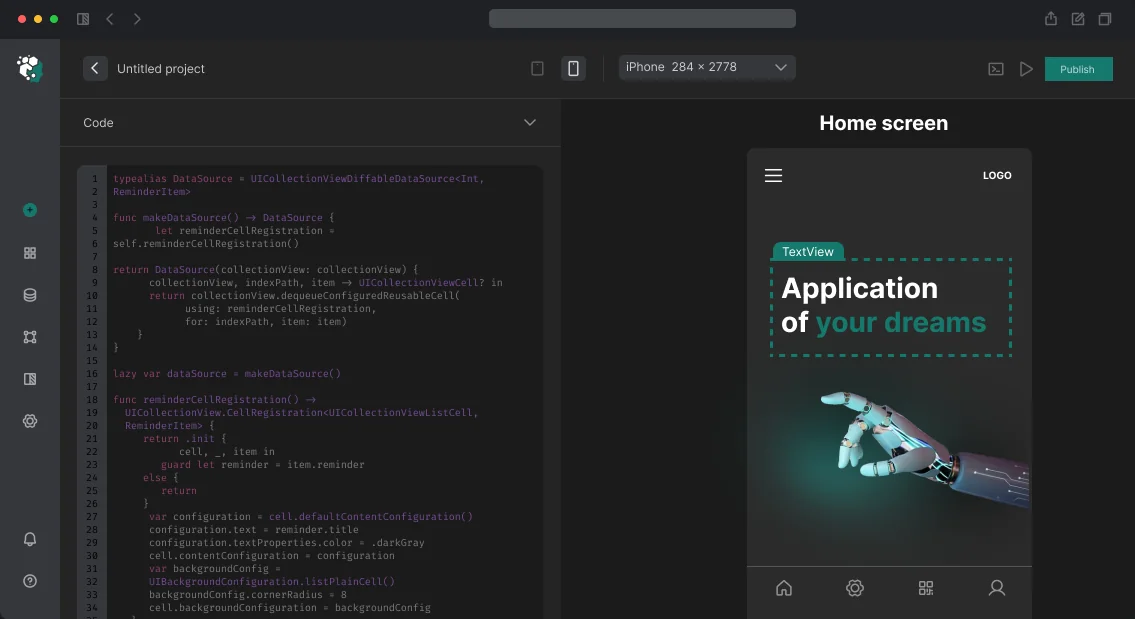
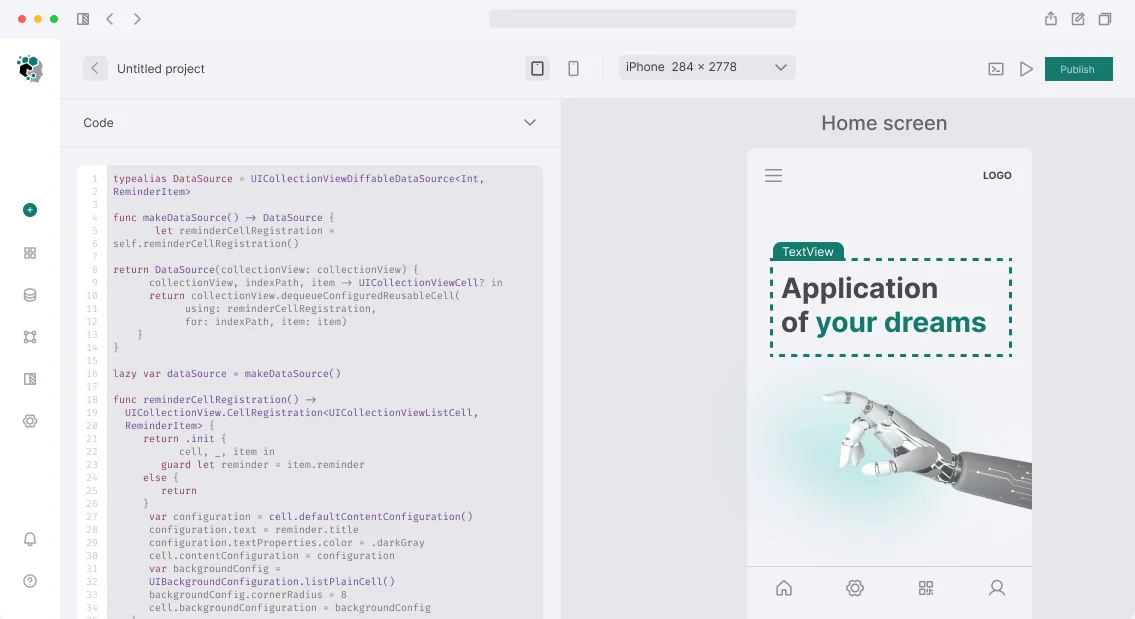
A client recently came to us with a fitness tracker project: a SwiftUI app, 50+ screens, the dark theme was ready, but the light theme simply inherited colors from design mockups without a system. After a month of testing, users complained that text was unreadable in bright sunlight and buttons blended into the background. A typical situation: a light theme is not just inverting colors, but a well-thought-out color system with semantic tokens, contrast relationships, and adaptation for different screens. We took on the project and rebuilt the entire color architecture in 3 days — now the app works on both OLED and LCD screens in various lighting conditions. Over 7 years, we have implemented light mode for 30+ projects, from fitness trackers to banking apps, and semantic tokens have consistently accelerated redesigns by 5–10 times compared to direct HEX values.
Why Semantic Tokens Are the Foundation of a Light Theme
A typical mistake early in a project is using concrete HEX values directly in components. It works initially, but at the first redesign or when adding a dark theme, it turns into a nightmare: 200 places with #F5F5F5 that need to be found and replaced. Direct color assignment is technical debt that dramatically increases maintenance costs.
The right approach is semantic tokens from the start. Token names describe the purpose of the color, not its appearance:
-
background.primary— main screen background -
background.secondary— card backgrounds, sidebar -
surface.default— component surfaces -
text.primary,text.secondary,text.disabled -
accent.default,accent.pressed,accent.disabled -
border.default,border.focused
Tokens are stored in a single source of truth — on iOS that's UIColor named colors in Asset Catalog (Color Set with one Light variant now, Dark later). In SwiftUI, we use Color("backgroundPrimary") or a custom extension Color. On Android, use Material Design 3 ColorScheme via MaterialTheme. Flutter — ThemeData with a full ColorScheme. Maintenance time savings with this approach reach 70%.
| Approach | Flexibility | Redesign Time | Error Risk |
|---|---|---|---|
| Direct HEX values | Low | 2-3 weeks | High |
| Semantic tokens | High | 2-3 days | Low |
How to Properly Build a Typographic Scale?
The typographic scale is part of the light theme. Not just "font size", but a full specification: font family, size, weight, line height, letter spacing for each text style. A minimal set includes Display / Large Title, Headline, Body, Body Small, Caption, Overline. Each style should be defined in a single object — for example, Font.TextStyle in SwiftUI or Typography in Material Design.
On iOS, the font scale is built on UIFont.preferredFont(forTextStyle:) — that's Dynamic Type, which automatically scales according to the user's accessibility settings. Ignoring Dynamic Type means breaking the app for people with visual impairments and risking rejection by Apple per App Store Review Guidelines Section 4.2.
| Contrast Level | Ratio | Recommendation |
|---|---|---|
| AA (normal text) | 4.5:1 | Minimum for readability |
| AAA (normal text) | 7:1 | Optimal for accessibility |
How to Ensure Contrast Across Different Screens?
Contrast is a critical parameter for readability. WCAG AA requires 4.5:1 for text up to 18pt and 3:1 for large text and UI elements. For products with a broad audience, we strive for AAA (7:1) where possible without harming design. We check contrast at every stage — from mockups to final build.
Verification tools: Figma plugin A11y - Color Contrast Checker, Xcode Accessibility Inspector, Android Accessibility Scanner. We check not only the main text but also placeholder text in fields (often guilty of low contrast), disabled states, icons, and borders.
Shadows and Elevation: The Invisible Hierarchy
In light mode, shadows are the primary way to show layer hierarchy. Material Design 3 uses elevation + shadowColor. iOS UIKit uses layer.shadowOffset, shadowRadius, shadowOpacity. The mistake is using the same shadow for all components. The rule: 3–4 levels of shadows, from subtle (card in a list) to prominent (modal, bottom sheet). Our engineers tune shadow parameters so they look natural on any screen and don't wash out under different lighting.
Common mistakes when implementing shadows:
- Using a single shadow for all elements (flat hierarchy)
- Too high opacity (shadow looks dirty)
- Ignoring shadowColor on Android (default is black — better to specify a tint)
What's Included in Our Work
When you order light theme development, you get:
- A color design system — a complete set of semantic tokens with documentation and usage examples for iOS (SwiftUI/UIKit), Android (Jetpack Compose), Flutter.
- A typographic scale with specifications for each style, including Dynamic Type.
- Shadow configuration with 3–4 levels and elevation recommendations.
- Contrast checks per WCAG AA/AAA with a report.
- Source files in Asset Catalog / ThemeData — ready for integration.
- Documentation on migration and future dark mode addition.
- Support for two weeks after delivery.
Timelines and How to Start
Estimated time: from 1 to 3 days depending on the app size and whether a design system already exists. The cost is calculated individually after analyzing the current code and mockups. We guarantee that the light theme will pass Apple and Google Play reviews without accessibility issues.
Contact us to evaluate your project. Get a consultation on implementing semantic tokens and a contrast color scheme — this takes no more than an hour.