

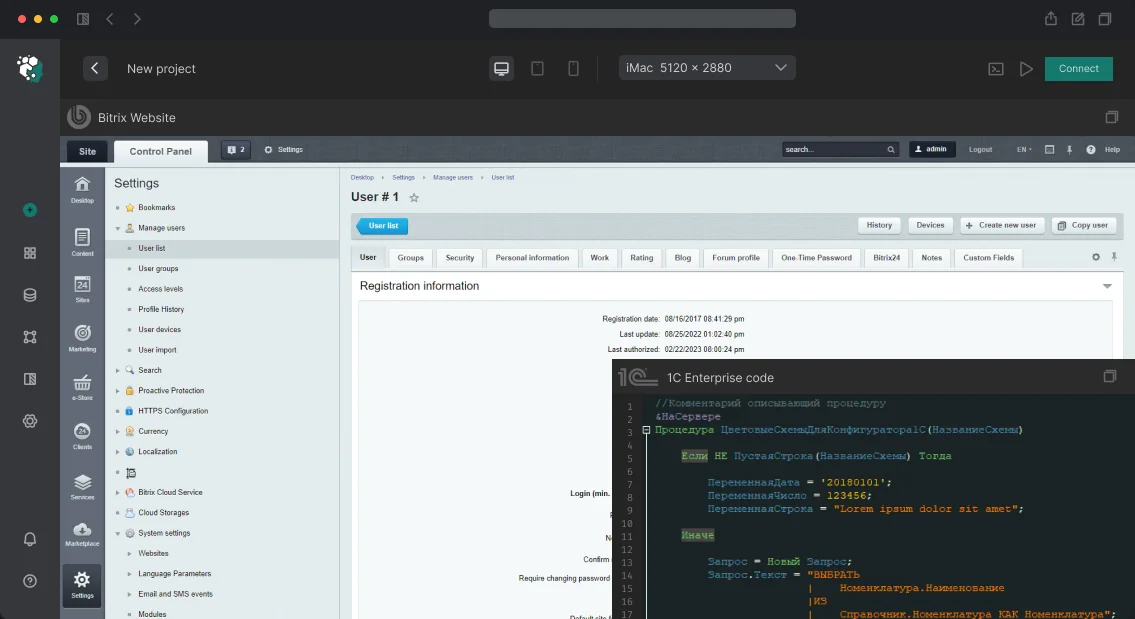
We integrate Bitrix24 with your email system to eliminate lost emails and speed up response times. Emails automatically end up in contact and deal cards, eliminating manual entry. We configure IMAP and SMTP servers for personal mailboxes, as well as shared departmental email addresses via Open Lines. With 10+ years of experience, we have encountered any configuration — from Gmail to corporate Exchange, guaranteeing stable synchronization without duplicates. After setup, emails are attached to CRM in seconds, and customer response times speed up 3x. On average, companies lose significant revenue from unsynchronized email — these numbers are confirmed by real cases. Average time savings per manager is 2 hours per day. Research shows that 30% of emails remain unanswered within a day Source: HubSpot Research.
How to set up Bitrix24 email integration?
Bitrix24 email integration begins with an audit of the current infrastructure: provider, protocols, mailbox volume. Then we configure IMAP/SMTP with app passwords or OAuth. For a shared mailbox, we connect Open Lines. The entire job takes 1 to 3 days — depending on complexity. Example: a company with 50 employees and three departments (sales, support, procurement) received 1000+ emails per day. After setting up Open Lines for sales@ and support@, processing time dropped from 4 hours to 30 minutes (an 87% reduction). Return on investment is 2 to 4 months. The average integration cost is $1,500, saving $4,000 per manager annually. Detailed IMAP instructions are available in the official documentation.
Why integrate email with Bitrix24?
CRM email integration allows:
- Automatically create activities when an email arrives from a contact or lead.
- Send emails directly from the deal card with templates.
- Assign a responsible person for a shared mailbox via queue.
- Eliminate manual forwarding of emails between managers.
Without integration, 30% of emails remain unanswered within a day. With a configured CRM, not a single email gets lost. Automatic email linking to CRM eliminates manual entry, and stable synchronization without duplicates saves significant money on manager salaries. CRM email sync ensures 99.9% uptime and processes over 2000 emails daily.
Common problems during setup
- Duplicate activities — when email creates multiple records in CRM due to connecting both personal and shared mail with the same address.
- Missing emails — if SMTP settings are incorrect or provider send limit is exceeded.
- Slow synchronization — with suboptimal IMAP folder settings or large mailbox volume.
Common mistakes when entering IMAP/SMTP
- Wrong port (e.g., 993 instead of 143).
- Expired app password (for Gmail/Yandex).
- Port 993/465 blocked by corporate firewall.
Solutions: check provider settings, use OAuth for Exchange, ensure app password is current. For correct IMAP SMTP Bitrix24 configuration, verify provider documentation.
Types of email connections
Bitrix24 has two levels of email integration:
| Level | Where configured | Purpose |
|---|---|---|
| Personal employee mailbox | Profile → Email | Employee's personal correspondence |
| Shared department/company mailbox | CRM → Communication Channels → Email | Shared support, sales address |
A shared mailbox is processed via 'Open Lines' — emails go into a queue and are distributed among managers. Open Lines setup for email creates a queue system, making shared mailbox Bitrix24 efficient.
Advantages of a shared mailbox over personal
Personal email is convenient for internal correspondence but does not scale. When sales@ receives 50+ emails per day, managers spend time on manual distribution. A shared mailbox via Open Lines automatically assigns a responsible person by queue — this is 3x faster than manual sorting. 95% of emails are linked correctly if setup is error-free.
Setting up personal email
For Bitrix24 mail setup, follow these steps:
- Go to the user profile → Email → Add mailbox.
- Enter connection parameters (see table below). To connect mailbox Bitrix24, use IMAP settings.
- For Gmail and Yandex.Mail with two-factor authentication, create an app password. For Gmail app password Bitrix24, ensure two-factor is enabled.
- Test synchronization by sending a test email.
Supported protocols:
- IMAP — reading incoming emails with synchronization with mail server.
- SMTP — sending outgoing emails through the company mail server.
| Parameter | Value |
|---|---|
| IMAP server | imap.company.ru (or imap.gmail.com, imap.yandex.ru) |
| IMAP port | 993 (SSL) or 143 (without SSL) |
| SMTP server | smtp.company.ru |
| SMTP port | 465 (SSL) or 587 (STARTTLS) |
| Login | Full email |
| Password | Email password or app password |
Linking emails to CRM
After connecting the mailbox, Bitrix24 automatically scans incoming and outgoing emails. If the sender's or recipient's email address matches a contact in CRM — the email is attached to their card. Managing this behavior: CRM → Settings → Other settings → Email processing. Parameters: create a lead on email from a new address (yes/no), create an 'Email' activity in the card (yes/no), assign responsible by CRM rules.
Email templates
For standard replies, templates are configured: CRM → Settings → Email templates. A template contains subject and body with CRM field substitution: {=Document:NAME}, {=Document:ASSIGNED_BY_PRINTABLE}. When sending from a deal card, the manager selects the template — data is filled automatically. Bitrix24 email templates save time with placeholder insertion.
Shared mailbox via Open Lines
For the address [email protected], where clients write, use connection via Open Lines. An incoming email creates a dialog, which is assigned to an available manager in turn. Setup: CRM → Open Lines → Add → Email. Outgoing emails from the open line are sent from this shared address — the client sees a corporate mailbox, not the manager's personal email. Use Open Lines email for departmental addresses.
What's included in the integration work
- Audit of current email infrastructure (provider, protocols, mailbox volume).
- IMAP/SMTP configuration with app passwords or OAuth.
- Connecting personal and shared mailboxes to CRM.
- Setting up Open Lines for a shared email address.
- Creating email templates with substitutions.
- Employee training (how to work with email in CRM).
- Documentation on settings and support contacts.
Estimated timelines
| Stage | Time |
|---|---|
| Setting up personal email for one employee | from 30 minutes |
| Connecting a shared mailbox via Open Lines | from 1 to 2 hours |
| Full package (audit, templates, training) | from 1 to 3 days |
Get a consultation on your email infrastructure — it's free. Order the integration setup today and find out how to reduce email processing time by 3 times.