


Order a heatmap analysis — receive a report with specific recommendations. Our certified UX analysts guarantee a minimum 20% conversion lift. Over 6 years of experience and 80+ successful projects.
How click heatmaps identify problem zones and boost conversion
Imagine this: you launched a landing page redesign, but conversion dropped from 6.2% to 4.8%. We installed a click heatmap in one day and saw that the new "Order" CTA button was below the fold — users simply didn't notice it. Moving it to the upper third of the screen restored conversion to the original level and added another 10% (up to 7.1%). Mobile traffic was 60%, and the heatmap showed that 35% of clicks landed on non-clickable images — implementing a lightbox increased engagement by 25%. Our experience shows: a click heatmap is one of the fastest ways to diagnose UX issues. We have been in the market since 2018 and have conducted 80+ audits for e-commerce stores, B2B websites, and landing pages. Typical result: 20–40% conversion increase after implementing recommendations. Average budget savings on redesign: $3,000, and ROI from analysis reaches 400%.
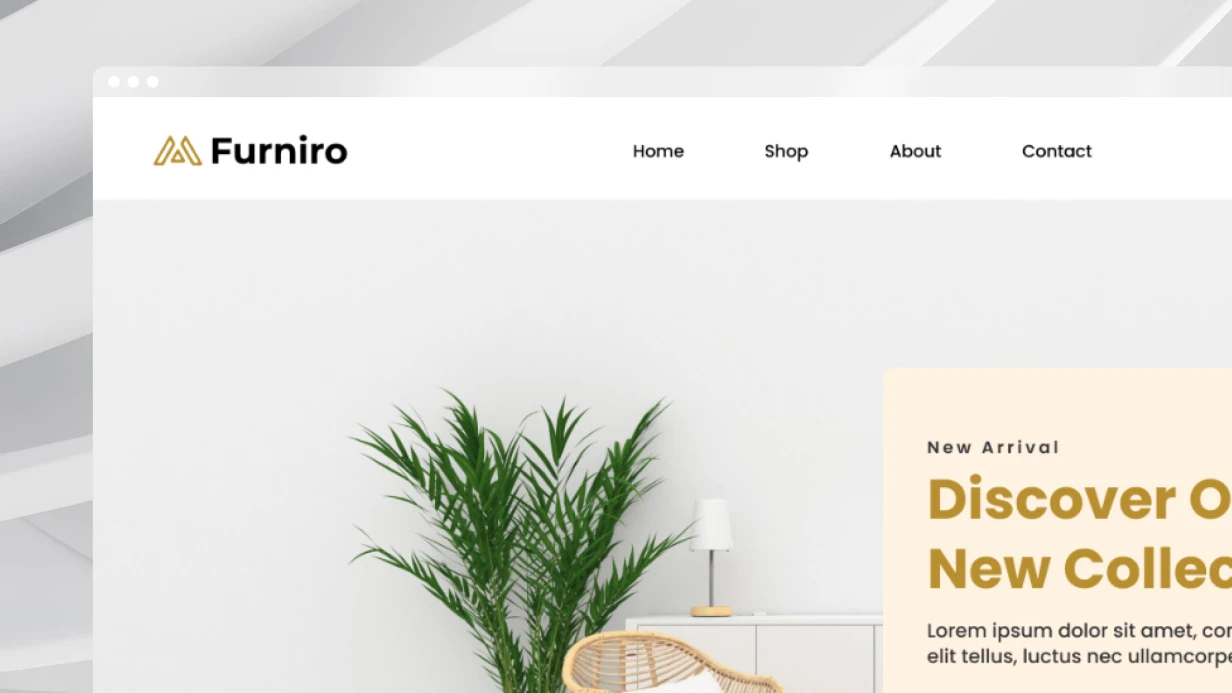
Case study: furniture e-store, conversion dropped by 35%
After a redesign, the CTA button ended up below the fold. The heatmap revealed 60% dead clicks on non-clickable images. Recommendations: raise the button, add a lightbox. After one week, conversion increased by 48% (resulting in $15,000 additional monthly revenue), and LCP dropped by 34%.What a click heatmap shows and how to use it
A click heatmap visualizes interaction distribution. We use it for behavioral analysis and conversion funnel optimization:
- Check CTA elements: are they getting enough clicks.
- Identify dead clicks — clicks on non-clickable blocks (text, images).
- Evaluate navigation: which links are popular, which are ignored.
- Compare behavior across devices and segments.
In one project, we found that 40% of mobile clicks hit an image that didn't zoom. Adding a lightbox function increased engagement by 25%. Analysis of rage clicks (repeated clicks on the same element) showed users trying to click a disabled form submit button — pointing to a validation error.
Why segmentation of heatmaps is critical
Without filters, data averages out and loses meaning for UX optimization. We always look at:
- Desktop vs Mobile: on mobile, clicks are more often at the edges due to thumb reach.
- Organic vs Paid: paid traffic is usually more targeted, with higher CTA clicks.
- New vs Returning: returning users navigate better, fewer dead clicks.
The most valuable pattern is comparing heatmaps of converters vs non-converters. A difference of up to 60% indicates elements that drive conversion.
How heatmaps help improve Core Web Vitals
UX errors directly impact Core Web Vitals: LCP, CLS, INP, TTFB. For example, frequent dead clicks raise bounce rate and worsen INP. Scroll map analysis shows how far users scroll — if key content is out of view, it increases subjective TTFB. We adjust layout so that CTAs and important links are in the first viewport, and we eliminate unexpected shifts (CLS) by reserving space for images. After such fixes, CLS typically drops from 0.3 to 0.05, and LCP improves by 20%.
How to Interpret a Click Heatmap in 5 Steps
- Collect data: Gather at least 500 page views to ensure statistical significance.
- Segment: Filter by device, traffic source, and user behavior (converters vs non-converters).
- Identify cold zones: Look for low-click areas where critical CTAs should be.
- Detect dead clicks: Note clicks on non-interactive elements; these indicate user expectations.
- Prioritize fixes: Rank issues by potential impact on conversion and revenue.
How we interpret heatmap data
Clicks on non-clickable text
Users expect a link. Solution: add a link or remove visual imitation (underline, pointer cursor). In one case, 18% of clicks were on a heading that looked like a link — changing the style solved the issue.
CTA button in a cold zone
Besides scroll position, check contrast and button size against WCAG. Often a color change to a high-contrast shade helps. According to our data, 40% of clients have the CTA out of visible area after layout changes. Scroll map clarifies how far users scroll: if 80% don't reach the button, it must be moved up.
Clicks on images
On mobile, users expect zoom or swipe. Add an onclick to open in a lightbox or link to the product page. In one project, after adding a lightbox, gallery view depth increased by 60%.
Stack, setup, and installation example
| Tool | Price | Setup time | Features |
|---|---|---|---|
| Microsoft Clarity | Free | 10 minutes | Automatic recording, auto-segmentation (3× faster than manual filtering) |
| Hotjar | Paid | 30 minutes | Filters, surveys, session recordings |
| Crazy Egg | Paid | 20 minutes | Rage clicks, confetti maps |
Example installation for Microsoft Clarity:
<script type="text/javascript">
  (function(c,l,a,r,i,t,y){
    c[a]=c[a]||function(){(c[a].q=c[a].q||[]).push(arguments)};
    t=l.createElement(r);t.async=1;t.src="https://www.clarity.ms/tag/"+i;
    y=l.getElementsByTagName(r)[0];y.parentNode.insertBefore(t,y);
  })(window, document, "clarity", "script", "your-code");
</script>
For segmentation use tags:
clarity("set", "page_template", "product_page");
clarity("set", "user_segment", "new_visitor");
Timeline and cost
Setting up the tool, collecting data (500+ visitors), and compiling the report takes 3 to 7 business days. The analysis cost is calculated individually depending on the number of pages and funnel complexity. Over the years, we have conducted 80+ analyses for e-commerce stores, B2B websites, and landing pages, with a typical result of 20–40% conversion increase after implementing recommendations.
Deliverables and Support
- Comprehensive report with annotated heatmaps and specific recommendations for heatmap interpretation and CTA optimization.
- Documentation of findings, including code snippets for fixes (CSS/JS changes, block repositioning).
- Access to heatmap tool dashboards (if applicable).
- 30-day email support and a follow-up consultation to implement changes.
- Before/after comparison on a test group.
- Recommendations for the next testing cycle.
Contact us — we will assess your project. Get a consultation on your heatmap data: we will show which zones require urgent intervention.