

How to Avoid Losing Clients in a Professional Training Center
Client loss in a professional training center often happens long before the conversation with a manager. A person enters the lobby, cannot find the right classroom, does not understand where to go—and silently leaves to competitors.
This is a classic lost lead that is easy to miss: the visitor did not complain, they simply did not come back.
Applicants, adult students, and corporate groups come with different questions but the same expectation—to get information quickly and without unnecessary stress.
If navigation is chaotic, staff have to be distracted by repetitive explanations, and a potential student wastes time and doubts the institution's reliability. Interactive kiosks remove this barrier right at the entrance.
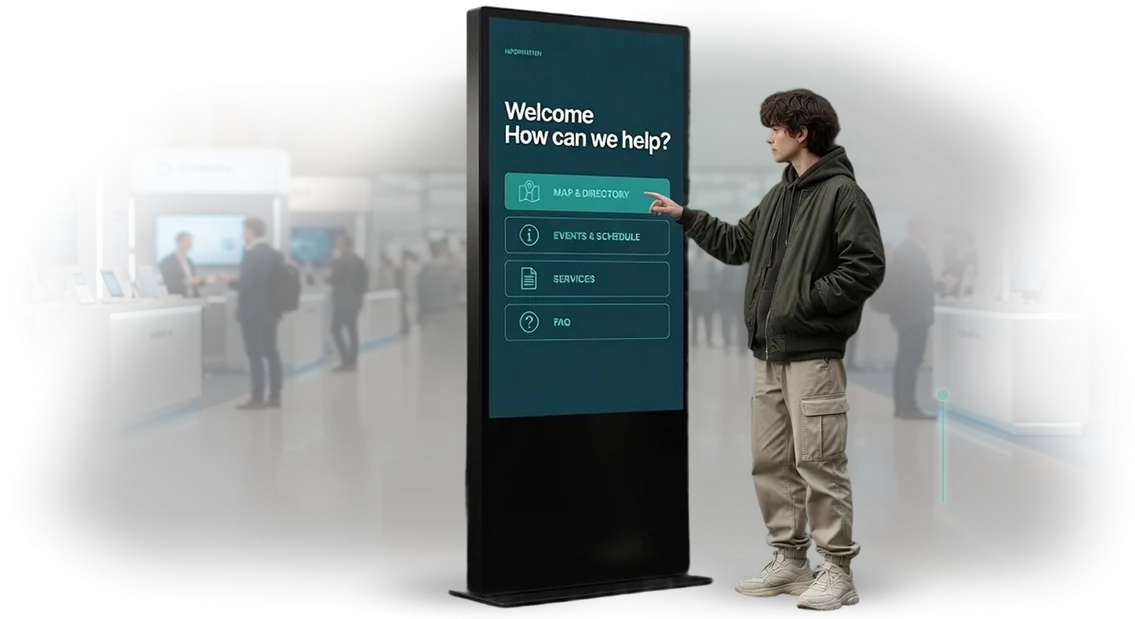
A touchscreen kiosk with a clear menu suggests a route to the right room, shows schedules, training programs, and contacts. One touch is enough for the client to understand where to go next.
They feel their time is valued, and trust in the training center forms before they even meet the instructors.
For a professional training center, this is direct work on retention: fewer lost visitors at every stage—from the first visit to re-enrollment in a course.
Load on administrators decreases, clients are more willing to share positive impressions and recommend the center to colleagues. Convenient navigation becomes part of the service that people are willing to return for.
That is why, when developing interactive kiosks, we design the interface logic around real visitor scenarios, not technical specifications. The result is a system that prevents people from getting lost and turns their first visit into a confident step toward training.
What a Navigation System Gives Your Center
A visitor to a professional training center arrives with a specific goal—to attend a class, submit documents, or meet with a coordinator. If they are met with queues at the reception and confusion about rooms, the first impression is spoiled before training even begins.
A navigation system solves this task in seconds: at a touchscreen stand, a person finds the right classroom, schedule, or instructor contacts on their own.
This is convenient for guests and simultaneously relieves administrators—instead of repeating “please go to the third floor,” they handle truly important matters.
Another benefit is fewer late arrivals and disrupted classes. When students quickly find their way around the building, groups gather on time, and the learning process continues without pauses.
For the commercial side, this directly affects the number of completed programs and student satisfaction.
Finally, an interactive kiosk raises the center's status. A modern interface, clean design, and thoughtful logic show that the organization cares about quality even in small details.
This supports recognition and trust: guests tell others about the comfort, and partners and parents of applicants perceive the center as a credible venue.
We incorporate all these results at the design stage: we adjust the structure to your premises and visitor flows, and after launch we regularly update schedules and assist center staff. You get a working tool that saves staff time and makes every guest's visit simple.
Interactive Kiosk Formats for Educational Centers
In an educational center, each visitor arrives with a different purpose: an applicant is looking for the admissions office, a student for the right classroom, a teacher for a colleague's office, and a parent wants to understand the training programs.
One large terminal at the entrance does not solve the problem: a person who gets lost in the corridor will still turn to staff. A practical approach is a combination of touchscreen kiosks, information terminals, and navigation stands in those places where guests have questions.
| Format | For whom | What it gives the client |
|---|---|---|
| Wall-mounted touchscreen kiosk in corridors | Students, teachers | Quick reference on schedules, rooms, and instructors—staff are less distracted from work |
| Floor-standing information terminal in the lobby | Applicants, visitors, partners | Interactive campus map and navigation by training areas; creates a modern image for the center |
| Navigation stand at corridor intersections | All visitors | Clear signs to the cafeteria, cloakroom, and offices—people find their way without administration help |
| Nameplate kiosk at the admissions office | Applicants, parents | Self-service sign-up for consultations, viewing document lists and deadlines; reduces queues and load on secretaries |
Formats do not compete with each other: each covers its own stage of the visitor's journey—from entering the building to receiving a specific service.
We select the right set for your center's layout and tasks, configure scenarios, and provide support so that any guest gets an answer within a minute without staff involvement.
Stages of Implementing Interactive Navigation
Implementing interactive navigation is not a one-time equipment installation, but a structured process in which the client always understands what is happening and when results will appear.
We divided the work into stages so that you can control every step, make changes without losing time, and know in advance when the kiosk will be up and running.
-
Brief and task analysis. First, we figure out who will use the navigation and how: what visitor flows, which areas need to be connected, what information is critical. The result is a clear placement diagram and a list of functions.
-
Designing the structure and scenarios. We work out the menu logic, search by classroom or instructor name, and routes to offices. You get a prototype you can show colleagues before development begins.
-
Design and content approval. We prepare screen mockups in your brand style and fill them with your materials. We make revisions before the interface is assembled, so there is no need to redo it later.
-
Development and integration. We build the interface, connect it to class schedules, classroom lists, and campus maps. All information updates automatically—you don't need to change content manually.
-
Testing and launch. We check performance on real equipment, eliminate possible failures, and train staff to use the system. We launch the kiosk into operation and remain available for final adjustments.
-
Post-launch support. We provide a warranty on system operation, promptly update content based on your requests, and ensure navigation does not fail during peak loads.
The entire cycle takes from two to four weeks depending on the amount of information. You get a clear schedule and understand what is happening at every stage, rather than just waiting for the result.
What Is Included in Kiosk Supply and Installation
You receive a complete turnkey solution—without hidden stages, unexpected expenses, or the need to understand technical details. We handle the entire path: from equipment selection to launch and staff training.
The standard package includes everything needed to operate kiosks in a professional training center:
- Equipment — touchscreen kiosks in protective enclosures, adapted for public spaces and designed for intensive use.
- Installation and setup — placement of kiosks at points of greatest visitor flow, connection to network and power, stability and safety checks.
- Navigation system configuration — loading floor plans, classroom structures, and routes, configuring search logic and information display.
- Content preparation — initial content: course directories, schedules, instructor contacts, information about training areas.
- Staff training — a practical session for administrators and secretaries: how to manage the kiosk, change schedules, add news, and respond to unusual situations.
- Documentation and instructions — short guides for staff and an administrator's manual for updating content.
- Technical support at launch — help during the first weeks of operation so kiosks perform their tasks reliably without your IT department's involvement.
Such a package removes the need to independently find contractors for installation, configuration, and training. You get a single point of responsibility: everything works together, launches quickly, and your staff confidently use the kiosk already on the day of installation.
Case: Navigation for a Staff Retraining Center
At a staff retraining center, the same picture repeated every day: adult students hurrying to classes stopped administrators and teachers with questions like "which floor?", "where do I turn?", "where is the meeting room?".
The flow of people is large, the building is large, and the time between classes is limited. Navigation signs did not help—in an unfamiliar environment, people still go where they see a live staff member.
For this client, we built an interactive navigation system on touchscreen kiosks. our team handled the entire cycle: we studied typical routes, designed the menu logic "like a GPS navigator," installed stands at intersections of traffic flows, and trained the staff.
The system suggests not only the classroom number but also a route with landmarks—"second floor, right from the staircase"—because adult learners need not a plan, but a clear route.
Results were measured after two working months. Visitor requests to staff with navigation questions dropped by almost a third during peak hours. The average time to find the right classroom decreased from five minutes to one and a half minutes.
In a student survey, navigation convenience was rated 9 out of 10—even though the majority of users were interacting with a touchscreen kiosk for the first time.
What This Gave the Training Center
- Staff stopped acting as signposts: administrators handle enrollment and documents, teachers prepare for classes.
- Students get to classrooms on time, so schedules are followed and groups do not wait for latecomers.
- The system updates remotely: when schedules change or the building is rearranged, new routes are loaded without an engineer visit.
The key performance indicator is repeated use: the center has been working with this navigation for several cohorts of students in a row and has not returned to paper signs. After the first launch, the client themselves ordered an expansion to a second building.
For us, this is the main confirmation that the kiosk solved a business problem, not just added a "screen in the lobby."
How to Choose the Right Kiosk Format for Your Center
There is no direct answer "here is the one best option"—the format is chosen for your center's tasks, not the other way around.
Decide in advance what the kiosk should do in the professional training center: help with orientation, introduce programs and schedules, accept course applications, or offload administrators.
The first selection criterion is placement location and foot traffic. A floor-standing kiosk at the entrance handles visitor flow and sets navigation to classrooms.
A wall-mounted option saves space in corridors; a compact unit at the administrator's desk helps submit an application without a queue. Each format covers its own task.
The second criterion is the number of simultaneous users and the complexity of scenarios. If there are dozens of students in the lobby during peak hours, the kiosk must quickly provide routes and schedules.
If visitors need to submit documents, a screen with a convenient input form is required. We make the interface intuitive with large elements so that people of any age can use it easily.
The third criterion is appearance and integration into the space. The enclosure is chosen to match the lobby style, and the visual design matches the center's brand identity.
A custom format is not just size and location, but also menu logic, sections, and texts that you can update without the contractor's involvement.
In summary: the right format comes from the answers to "where it stands," "what it is for," "who uses it." We help you determine these parameters at a preliminary meeting and offer a solution for your space and tasks.
As a result, the kiosk improves service quality in the professional training center: visitors find classrooms faster, contact administrators less often, and sign up for courses more often.
Frequently Asked Questions About Implementing Interactive Kiosks
When implementing interactive kiosks in a professional training center, the most common concern is: what if the equipment fails at the worst possible moment?
The doubts are understandable—the kiosk greets visitors every day, and downtime means inconvenience for students, teachers, and applicants. Below we address typical fears and explain how reliability, warranties, and maintenance work.
What if the kiosk breaks down?
We supply equipment that has undergone pre-sale setup and testing for round-the-clock operation. All components are covered by warranty, and in case of a malfunction we promptly diagnose and replace the faulty module—so downtime is measured in hours, not weeks.
Who is responsible for maintenance after installation?
We handle maintenance ourselves: we remotely monitor system health, update the software part, and control content loading. You don't need to hire a separate employee or understand technical details—our team resolves all issues.
How do we update schedules and course information?
Content is changed through a clear admin panel: added a new program, updated the schedule, posted an announcement—all of this takes a few minutes. If necessary, we train your employees and assign a personal manager for quick changes.
What guarantees that the system will work at our location?
We record launch deadlines and the scope of work in the contract. Before handover, we conduct test operation at your location to make sure the kiosk works correctly under real load and visitors easily find the needed information. Only then do we sign the acceptance certificate—and after that, you receive warranty support.
Discuss Your Center's Navigation Task Today
Tell us about your professional training center's tasks—and today we will begin working on a solution. You will receive expert consultation and a project cost estimate tailored to your space, student flows, and building movement logic.
We work with educational institutions of various formats: from small courses to large educational complexes. We understand how important navigation is for new students, teachers, guests, and applicants—so we take into account all kiosk usage scenarios.
The process is organized so that you spend minimal time on coordination:
- You submit a request on the website or contact us in any convenient way—we will call you back within a business day.
- We conduct a consultation: we discuss the layout, number of visitors, and key navigation points in classrooms and administrative areas.
- We analyze the task and propose a solution that will reduce staff workload and help students find their way quickly.
- We prepare a cost and timeline estimate—you get a transparent quotation without hidden extras.
- We agree on the project, work plan, and launch stages—you are informed of every step.
- After implementation, we hand over instructions and remain available for support.
No advance payments or complicated approvals. After the first conversation, you will understand how navigation in your center will change, how much it will cost, and when it will be ready.
Submit your request—it will take a couple of minutes. We will prepare the estimate ourselves, coordinate the details, and offer the optimal solution for your budget and tasks.